Hide or remove/uninstall pre-installed apps or bloatware
Besides the system apps, to offset the manufacturing cost of KaiOS devices and to advertise to new Internet users, device manufacturers and KaiOS Technologies often include extra apps with advertisements and free trials within the operating system. Although these apps take very minimal system space, for many users, removing those unnecessary or distracting “bloatware” is considered a common practice when they set up a new KaiOS device.
When you set up a new device or reset one to factory default settings, apps are copied from the stock “installation media” located at /system/b2g/webapps to the designated userspace application folder at /data/local/webapps before the out-of-box setup experience (OOBE) starts. If you have a working Internet connection during the OOBE, either from mobile data or Wi-Fi, KaiOS will attempt to install and update extra apps from KaiStore.
To hide or remove/uninstall those apps, you may use either Busybox or ADB to sideload tools that hide them from the app launcher, or remove them from /userdata and/or /system partitions.
On some KaiOS versions, there might be one or two folders named “Games” and “Utilities”. These are from the launcher and cannot be removed using this guide; you need to modify the
launcher.gaiamobile.orginstead.
KaiOS 2.5 and earlier
Before you start, make sure you have a KaiOS 2.5 device with debugging mode activated, and a computer with Android Debug Bridge (ADB) ready. This guide assumes you are comfortable sideloading apps using ADB and WebIDE.
AppBuster
Originally made by Luxferre, AppBuster uses the navigator.mozApps.mgmt.setEnabled API to hide apps you don’t need from the app launcher and allows you to later re-enable them if you change your mind. Unlike the options below, the app does not use the engmode-extension permission to modify the system, so you can install it on devices with restrictive devtools.apps.forbidden-permissions setting.
However, it can only hide the apps from the launcher, and you may still be able to access them by other means (e.g. from the homescreen carousel or redirection from other apps.)
Changes are only made in userspace, and can be undone through the app or with a factory reset.
To start, download AppBuster as a ZIP package and use ADB and WebIDE to sideload the app on your phone. Once the app opens, use the Up/Down D-Pad keys to navigate through the list of apps, and press the number keys associated with the apps you want to hide. Press # to apply.
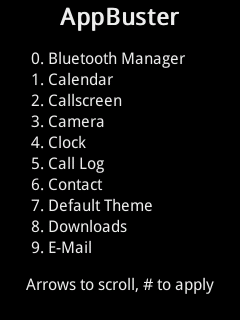
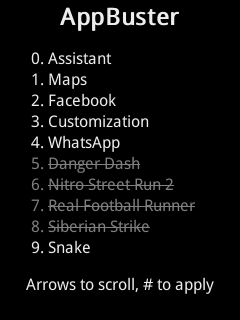
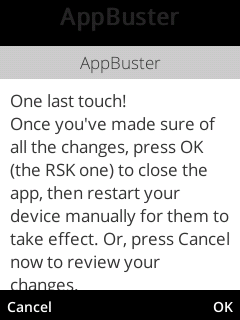
Follow the prompt and restart your phone by holding down the Power key. On KaiOS 2.5.3 and later, you can also perform a Deep Memory Cleaning, which restarts the B2G engine and applies the changes.
To undo, repeat the instructions but use D-Pad Up/Down and number keys to remove the strikes off the hidden apps.
Source code for the modified version of AppBuster shown is available at https://github.com/bmndc/AppBuster.
Wallace Toolbox and Busybox
Wallace Toolbox is an advanced utility for KaiOS 2.5 devices developed by Luxferre. It offers a comprehensive set of scripts for applying tweaks found in GerdaOS on stock KaiOS and making modifications to the operating system.
Version 6 of the tool, released on 28 September 2020, can now set all installed apps as removable by using Busybox to find and replace the removable properties of apps in /data/local/webapps/webapps.json.
Wallace Toolbox requires the
engmode-extensionpermission on KaiOS 2.5.1 and later,kaiosextensionpermission on KaiOS 2.5 andjrdextensionpermission on KaiOS 1.0 to function.If your device prohibits sideloading apps that require these permissions, you may need to root your phone and use WebIDE to clear the
devtools.apps.forbidden-permissionsDevice Preferences setting, or use AppBuster instead.
Changes are only made in userspace, and can be undone with a factory reset.
HMD/Nokia devices should usually already have Busybox.
If your device doesn’t have Busybox, download OmniBB from the BananaHackers Store and use ADB and WebIDE to sideload the app onto your phone. Once OmniBB opens, press OK on your phone to begin the process of temporarily installing Busybox. The app should display the “Busybox loaded” alert when Busybox is loaded onto the system.
Busybox is temporarily loaded onto the system until the next restart.
Download Wallace Toolbox from the BananaHackers Store and use ADB and WebIDE to sideload. In the app, press # to activate the script to mark all apps as removable, and follow the prompt to restart the phone.
You may then highlight any app in the app launcher, select Options, Uninstall and confirm to delete the app. For devices that use specialised app launchers, you might need to use an application manager such as ALLA.
Because the app is completely removed from /userdata, to undo, you must perform a factory reset on your device.
Source code for OmniBB and Wallace Toolbox are available at https://gitlab.com/suborg/omnibb and https://gitlab.com/suborg/wallace-toolbox respectively.
Complete wipe from /system with Wallace Toolbox and Busybox
Dangerous
Back up the
/systempartition before proceeding. Once you make permanent changes to the system, it will stay that way and even a factory reset cannot undo those changes.
If you wish to permanently remove the pesky apps and persist the changes through factory resets or over-the-air (OTA) updates, you can delete them from /system/b2g/webapps.
Begin by granting yourself temporary root access to ADB shell. If your device doesn’t have Busybox, download OmniBB from the BananaHackers Store, install it via ADB and WebIDE and press OK to temporarily load Busybox onto system until you restart your device.
Download and install Wallace Toolbox and press 1 within the app. You should see “Rooted ADB access until reboot”.
Connect your phone to the computer with ADB installed and execute this to list all apps on the /system partition:
$ adb devices
* daemon not running; starting now at tcp:5037
* daemon started successfully
List of devices attached
1a2b3c4d        device

$ adb shell ls /system/b2g/webapps
...
Once you determine which app you want to remove, execute this to grant yourself read-write access to /system. Note that even when you remount /system as read-write, the app folders under /system/b2g/webapps are still read-only (read-write for item owners, which is system), so you need to grant yourself permissions to write changes to the folders:
If you’re interested in chmod, consider reading chmod on Wikipedia and File permissions and attributes on Arch Linux Wiki.
$ adb shell mount -o rw,remount /system

$ adb shell
root@Nokia 2720 Flip:/ # cd /system/b2g/webapps

root@Nokia 2720 Flip:/system/b2g/webapps # ls -la [app.gaiamobile.org/]
-rw-r--r-- root     root      2039242 2008-12-31 23:00 application.zip
-rw-r--r-- root     root          478 2008-12-31 23:00 manifest.webapp

root@Nokia 2720 Flip:/system/b2g/webapps # chmod -R 664 [app.gaiamobile.org/]

root@Nokia 2720 Flip:/system/b2g/webapps # ls -la [app.gaiamobile.org/]
-rw-rw-r-- root     root      2039242 2008-12-31 23:00 application.zip
-rw-rw-r-- root     root          478 2008-12-31 23:00 manifest.webapp

root@Nokia 2720 Flip:/system/b2g/webapps # rm -r [app.gaiamobile.org/]

root@Nokia 2720 Flip:/system/b2g/webapps # exit

$ adb shell mount -o ro,remount /system
Edit /data/local/webapps/webapps.json, delete the JSON entry of the app you removed and reboot:
$ adb pull /data/local/webapps/webapps.json
/data/local/webapps/webapps.json: 1 file pulled, 0 skipped. 2.0 MB/s (121414 bytes in 0.058s)
Use a JSON validator, such as JSONLint, to ensure the edited JSON file is correct. Otherwise, the system will fail to load apps and all your apps may disappear into the void.
$ adb push webapps.json /data/local/webapps
webapps.json: 1 file pushed, 0 skipped. 89.4 MB/s (120424 bytes in 0.001s)

$ adb reboot
Q: If I accidentally deleted an app, can I restore it by sideloading through WebIDE?
Although it’s technically possible, you should not. Some built-in apps, like KaiStore, have special permissions to the system beyond those defined in /data/local/webapps/webapps.json. Sideloading these apps with WebIDE can’t replicate these permissions, which can cause some of their functionalities to fail.
In the case of KaiStore, KaiOS defines apps installed from the pre-installed KaiStore as originating from a different source compared to those installed using the new KaiStore. Sideloaded KaiStore cannot update apps installed using the built-in KaiStore, and vice versa. If you wish to use the new KaiStore, you may need to reinstall the apps you installed before removing KaiStore.
Telnetd, ADBroot and Wallace (legacy)
Kudos to Speeduploop, original BananaHackers team member, for writing this guide (original topic on Google Groups)
Due to the complexity and out-of-date nature of this guide, we recommend using AppBuster or Wallace Toolbox instead.
If your device doesn’t have Busybox, to use Telnetd, you need to download OmniBB from the BananaHackers Store, install it via ADB and WebIDE and press OK to temporarily load Busybox onto system until you restart your device.
- Grant yourself temporary root access to the ADB shell:
- Telnetd: Download Telnetd from the BananaHackers Store and sideload the app via ADB and WebIDE. Once it opens, press OK on your phone to start the Telnet server on your phone;
- ADBroot: Download ADBroot from the BananaHackers Store and install it via ADB and WebIDE. Once the app opens, use the D-Pad keys to click on the Enable button;
- Wallace and its variants: Download and install using ADB and WebIDE. Once the app opens, press OK.
- Connect your phone to the computer if you haven’t done so, and execute these to get the
webapps.jsonfile from/data/local/webapps. It will be saved into the folder you execute the command from.- ADBroot and Wallace:
adb pull /data/local/webapps/webapps.json - Telnetd:
- ADBroot and Wallace:
adb shell
busybox telnet localhost
cp /data/local/webapps/webapps.json /sdcard/
exit
exit
adb pull /sdcard/webapps.json
Before proceeding, you may want to make a copy of the
webapps.jsonjust in case.
- Open the pulled
webapps.jsonwith a text editor that preserves LF line endings. On Windows 10 version 1803 and earlier versions of Windows, you can use Notepad++. For every app you might want to uninstall, change the"removable"field/line of its entry from"removable": false,to"removable": true,
  "dangerdash-premium.gaiamobile.org": {
    "origin": "app://dangerdash-premium.gaiamobile.org",
    "installOrigin": "app://dangerdash-premium.gaiamobile.org",
    "receipt": null,
    "installTime": 1519516800000,
    "updateTime": 1533254400000,
    "manifestURL": "app://dangerdash-premium.gaiamobile.org/manifest.webapp",
    "localId": 1053,
    "appStatus": 3,
    "manifestHash": "477edbd8bc9ee6657c34bac2b8a5d23f",
    "packageHash": "33ddc5780dbf177cbf46f5fb9d5713d7",
    "basePath": "/system/b2g/webapps",
    "id": "dangerdash-premium.gaiamobile.org",
-   "removable": false,
+   "removable": true,
    "enabled": false,
    "preinstalled": true,
    "kind": "packaged",
    "name": "Danger Dash",
    "csp": "",
    "role": "",
    "userAgentInfo": "",
    "oldVersion": "1.1.1",
    "widgetPages": [],
    "redirects": null,
    "additionalLanguages": {},
    "installerAppId": 0,
    "installerIsBrowser": false,
    "installState": "installed",
    "storeId": "",
    "storeVersion": 0,
    "blockedStatus": 0,
    "downloading": false,
    "readyToApplyDownload": false
  },
- Use ADB to push the modified
webapps.jsonfile back in its place:- ADBroot and Wallace:
adb push webapps.json /data/local/webapps/ - Telnetd:
- ADBroot and Wallace:
adb push webapps.json /data/local/tmp
adb shell
busybox telnet localhost
cd /data/local/webapps
cp webapps.json webapps.json_bak
rm webapps.json && cp /data/local/tmp/webapps.json . && chmod 600 webapps.json && chown root:root webapps.json
Check the file permissions of the webapps.json file. It should look something like this:
root@Nokia 2720 Flip:/data/local/webapps # ls -la webapps.json
-rw------- root     root        57563 2019-03-23 15:58 webapps.json
^^^^^^^^^^^^^^^^^^^^^^^^ this should be exact
Exit the Telnetd shell by typing exit twice, then restart the phone with adb reboot. Once restarted, you may then highlight any app you’ve made removable, select Options, Uninstall and confirm to delete the app. For devices that use specialised app launchers, you might need to use an application manager such as ALLA.
Changes are only made in userspace, and can be undone with a factory reset.
KaiOS 3 and later
Note on the Internet app (built-in browser)
ostore
Manual uninstall
For debug-enabled KaiOS 3 devices, we believe the process should be similar to that of KaiOS 2.5 devices. We are, however, unable to verify that since we do not have the only debug-enabled KaiOS 3 device, the Nokia 2780 Flip, and almost all other v3 devices are debug-locked and only available in the US.
In case you have a rooted 2780 Flip or another debug-enabled KaiOS 3 device, the process should be as follows:
- Connect your phone to a computer with ADB installed, and run
adb devicesto start the ADB server; - Use ADB to pull
webapps.jsonfrom userdata:
adb pull /data/local/webapps/webapps.json
- Open the pulled
webapps.jsonwith a text editor that preserves LF line endings. On Windows 10 version 1803 and earlier versions of Windows, you can use Notepad++; - For every app you might want to uninstall, change the
"removable"field/line of its entry from"removable": false,to"removable": true,, or add the field/line if necessary; - Save the file and push it back into place:
adb push webapps.json /data/local/webapps
- Restart the phone. You may then highlight any app in the app launcher, select Options, Uninstall and confirm to delete.
Please let us know via Google Groups, Reddit or Discord if you have any problems following this procedure on any debug-enabled KaiOS 3 device, or if you get this to work. We really appreciate it.